
Embed PDFs in Your Course#
The PDF embed tool allows you to add PDF documents to your course. It uses an the browser’s built-in PDF viewing capability, and provides options for downloading the document or its original source.
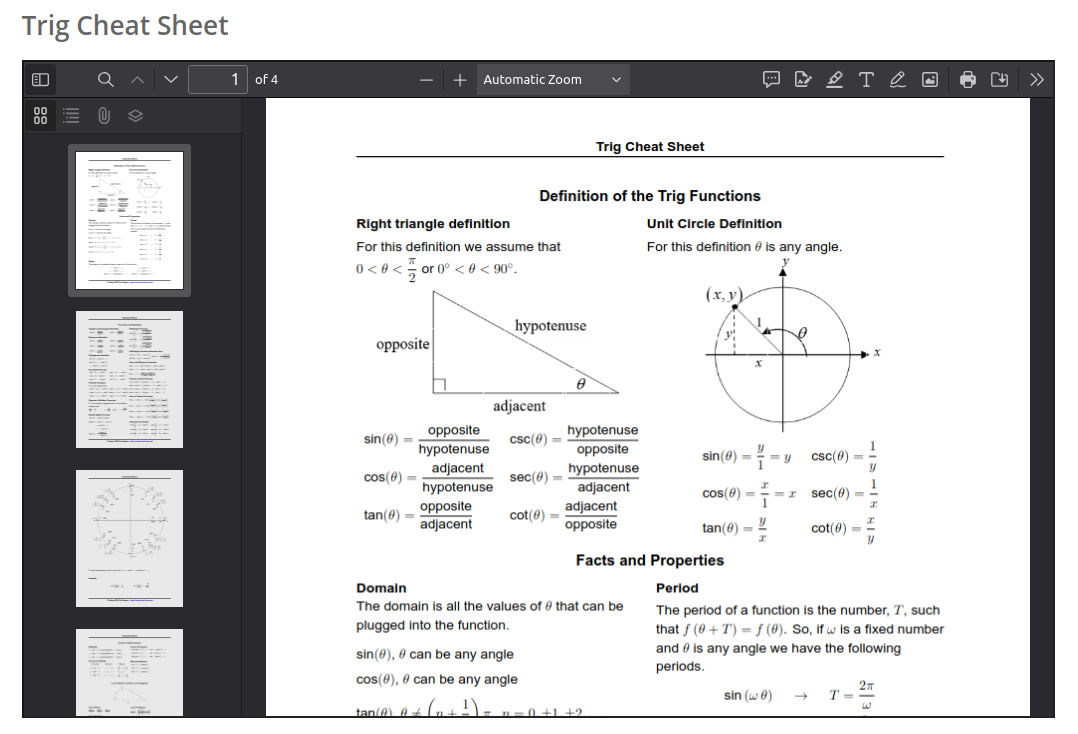
PDFs have significant accessibility challenges. They are finalized documents intended for printing exactly specified copies. This makes them difficult for screen readers and other assistance technology to interpret. You are strongly encouraged to use alternative means of presenting the information in these documents, such as a text component. Please visit the Accessibility Best Practices Checklist for more information, which also includes a guide on improving PDF accessibility if they must be used.
Additionally, viewing PDFs on mobile devices results in a poor learner experience.
Nevertheless, the PDF embed block exists to handle the case of a document being unavailable in other formats, or for when variations in representing the document are unacceptable.
How to Embed PDFs in Open edX Studio#
Ensure the PDF embed tool is enabled in your course.
To enable the pdf embed tool in Studio, add the
"pdf"key to the Advanced Module List on the Advanced Settings page. (Be sure to include the quotation marks around the key value.) For more information, see Enable Additional Exercises and Tools.On the Course Outline page, open the unit where you want to add the PDF.
Under Add New Component click Advanced and then select PDF. A customization form will appear, allowing you to set the settings of the PDF embed block.
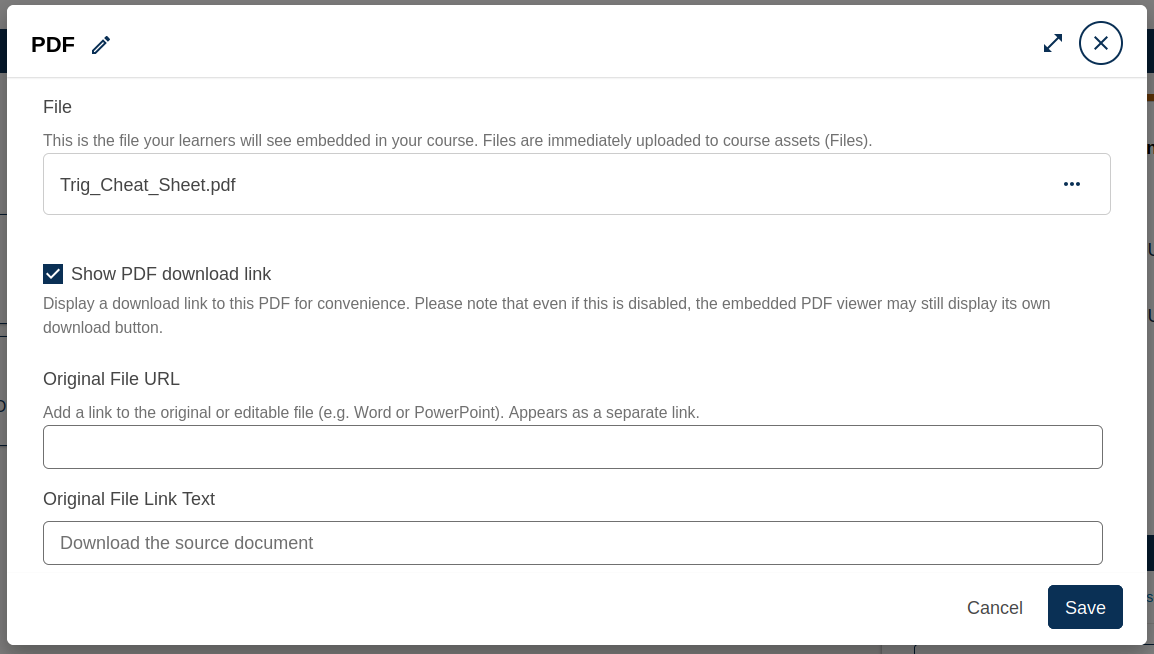
In the header of the form, click the pencil to set the title of the block.
In the File field, hit the dropdown menu and select Replace to upload a new file.
You may optionally set a URL for your PDF by selecting Manually specify URL from the dropdown.
Toggle Show PDF download link field to optionally display a download link for the PDF.
Note
PDF display is handled by the browser’s built-in PDF viewer. The option to hide the download button will not hide the browser’s built-in download button if it provides one. A determined learner will always be able to download a PDF.
In the Original File URL field, optionally add the URL to the source of the PDF document.
This might be, for instance, the PowerPoint or Word document this PDF is based on. Providing a source URL is heavily encouraged, as source files tend to have better accessibility than PDFs. Please visit the Accessibility Best Practices Checklist for more information.
In the Original File Link Text field, you can change the display text of the source download link.
Select Save.
Maintenance chart
Review Date |
Working Group Reviewer |
Release |
Test situation |
20/04/2026 |
Fox Piacenti |
Verawood |
Pass |